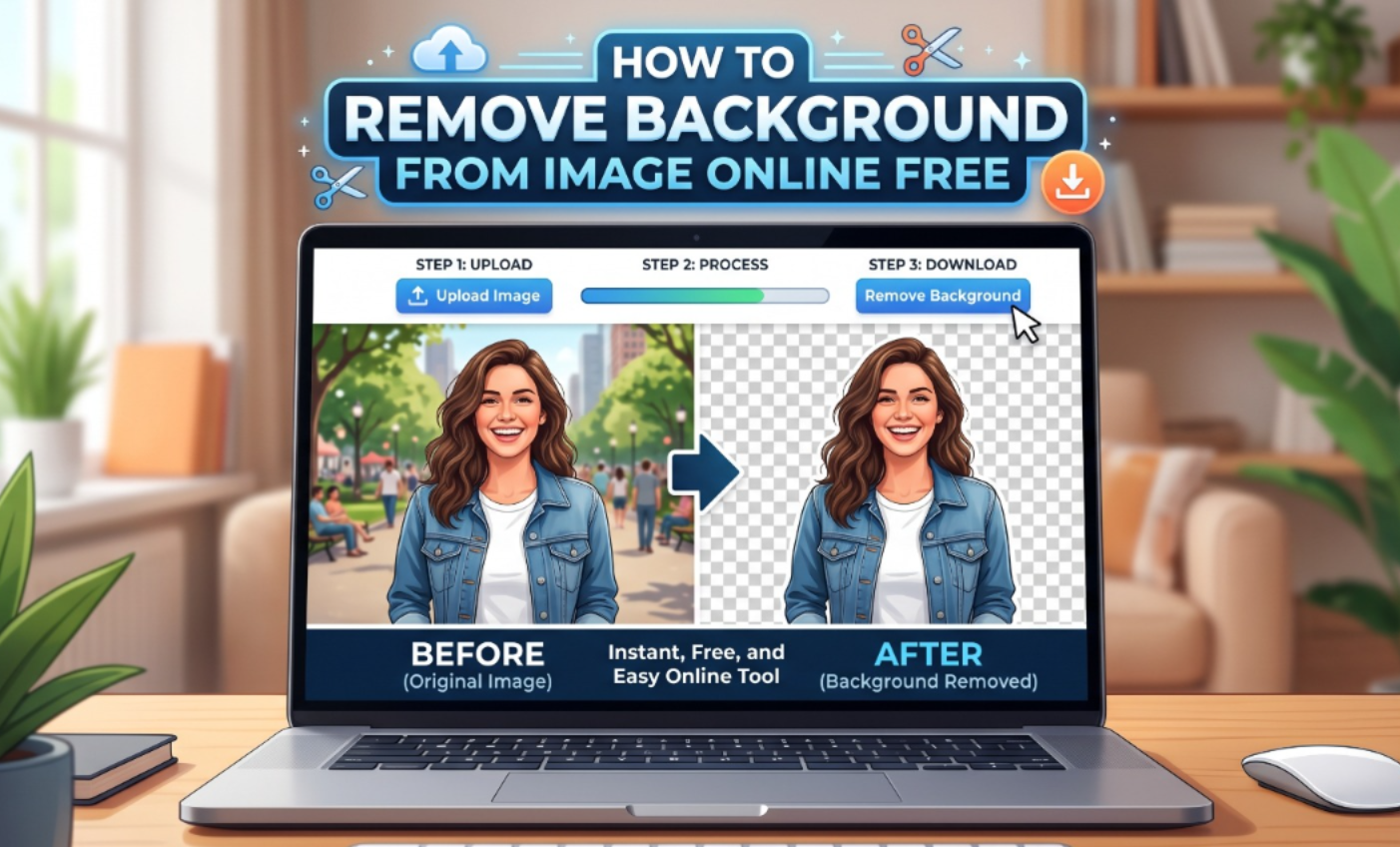
How to Remove Background from Image Online — Free & Easy
Okay, real talk. A few months ago I was putting together a presentation and I desperately needed a clean product photo — you know, the kind with a plain white background. My photo? A cluttered desk with my half-eaten snack in the corner. Not exactly professional.
I didn't have Photoshop. I didn't want to spend money on anything. And I definitely didn't have time to watch a 45-minute tutorial. Sound familiar?
That's when I started hunting for ways to remove background from image online — completely free, no software needed. And honestly? I found some tools that blew my mind. Let me walk you through the ones I actually use and trust.
Why Use an Online Background Remover?
Let's be honest — not everyone has Photoshop, and not everyone wants it. It's expensive, it's heavy, and the learning curve is real. Online background removers fix all of that instantly.
You just upload your image, wait a few seconds, and boom — clean background, ready to use. Most of these tools use AI to detect the subject automatically, so you don't have to trace anything manually. I still can't believe this is free.
Whether you need it for a CV photo, a product shot, a thumbnail, or just a fun edit — these tools get the job done without any technical skills required.
Best Free Tools to Remove Background from Image Online
1. Remove.bg — My Personal Favorite
This is the one I always go back to. Remove.bg uses AI to detect and remove backgrounds in literally 5 seconds. You upload, it processes, you download. That's it.
The free version gives you a lower-resolution download, which is totally fine for most casual uses like presentations, social media posts, or thumbnails. If you need full resolution, they have affordable credits — but honestly I've never felt the need to buy them.
Best for: portraits, product photos, anything with a clear subject in the foreground.
2. Canva Background Remover — Best for Editing After
If you already use Canva (and honestly, who doesn't?), they have a built-in background remover tool. The catch — it's a Canva Pro feature. BUT, if you're on the free trial or have Pro access, it's incredibly convenient because you can remove the background and keep editing in the same app.
I used this for my Instagram story templates and it saved me so much time going back and forth between apps. Highly recommend if design work is part of your workflow.
Best for: users who need to edit the image further after removing the background.
3. Erase.bg — Great for Complex Backgrounds
This one surprised me. Erase.bg handles messy, complex backgrounds way better than I expected from a free tool. I tested it on a photo taken in a busy cafe and it still managed to isolate my subject cleanly.
It's completely free with no watermark on downloads, which puts it above many competitors. The UI is clean, simple, and there's even a bulk upload option if you have multiple images. Super useful.
Best for: complex or busy backgrounds, bulk image processing.
4. Adobe Express — Solid Free Option from Adobe
Yes, Adobe has a free online tool for this. Adobe Express offers background removal as part of its free plan, and the quality is exactly what you'd expect from Adobe — clean, precise, and professional-looking.
You do need a free Adobe account to use it, but that takes about 30 seconds to set up. Worth it for the quality you get, especially for more detailed images.
Best for: high-quality results, professional use cases.
Step-by-Step: How to Remove a Background in Under 1 Minute
I'll use Remove.bg as the example here since it's the simplest. But the steps are pretty much the same for all the tools above.
- Go to remove.bg in your browser — no download needed.
- Click "Upload Image" and select your photo.
- Wait about 3–5 seconds while the AI does its thing.
- Preview the result — the background should be gone already.
- Click "Download" to save your transparent PNG.
That's genuinely it. I timed myself once — 47 seconds from upload to download. No tutorials, no tools, no stress. I wish I'd known about this sooner.
Quick Comparison: Which Tool Should You Use?
| Tool | Free Plan | Quality | Best For |
|---|---|---|---|
| Remove.bg | ✅ Yes (low-res) | ⭐⭐⭐⭐⭐ | Quick edits, portraits |
| Erase.bg | ✅ Yes (full-res) | ⭐⭐⭐⭐ | Complex backgrounds |
| Canva | ⚠️ Pro only | ⭐⭐⭐⭐ | Design workflows |
| Adobe Express | ✅ Free account | ⭐⭐⭐⭐⭐ | Professional results |
Pro Tips for Better Background Removal Results
- Use photos with good contrast between your subject and background — AI works best when the edges are clear.
- Avoid blurry or low-resolution images — the AI struggles to find clean edges on poor quality photos.
- If the free result has rough edges, try Erase.bg's manual touch-up feature to clean it up.
- For product photos, shoot against a plain light-colored wall first — it makes the AI's job way easier.
- Save your final file as PNG to keep the transparent background intact.
Frequently Asked Questions
Is it safe to upload my photos to these tools?
Generally yes — all the tools I mentioned (Remove.bg, Erase.bg, Adobe Express, Canva) have clear privacy policies and don't store or sell your images. That said, avoid uploading sensitive personal documents or anything confidential just to be safe.
Can I remove background from image on my phone?
Absolutely! All these tools work in mobile browsers — no app download needed. Just open the website on your phone, upload directly from your gallery, and download the result. Remove.bg even has a dedicated mobile app if you prefer that.
Which tool gives the best quality for free?
If full-resolution downloads matter to you, Erase.bg is your best bet — it gives full-res results completely free with no watermark. For overall AI accuracy, Remove.bg and Adobe Express are hard to beat.
Final Thoughts from Olivia
Honestly, learning how to remove background from image online was one of those small things that made a surprisingly big difference in my day-to-day. Whether it's for school projects, content creation, or just making your profile picture look cleaner — these free tools are genuinely impressive.
My go-to is still Remove.bg for speed, and Erase.bg when I need that full-resolution file. Give both a try and see which one you vibe with!
Got a tool I missed? Drop it in the comments — I'm always looking for new favorites. And if this helped you out, share it with a friend who's still manually erasing backgrounds pixel by pixel. Save them from that nightmare. 😄
'Tech' 카테고리의 다른 글
| How to Create a QR Code for Free in Under 2 Minutes (0) | 2026.05.30 |
|---|---|
| How to Set Up Google Alerts for Free (Step-by-Step) (0) | 2026.05.29 |
| How to Convert YouTube to MP3 Legally in 2026 (0) | 2026.05.29 |
| How to Speed Up Your Android Phone in 5 Minutes (0) | 2026.05.29 |
| How to Schedule WhatsApp Messages on Android (0) | 2026.05.29 |