How to Schedule WhatsApp Messages on Android (Free & Easy)

Okay so this happened to me last month — my best friend's birthday was at midnight, and I desperately wanted to be the first to wish her. But knowing myself? I'd be deep asleep by 11 PM. Classic.
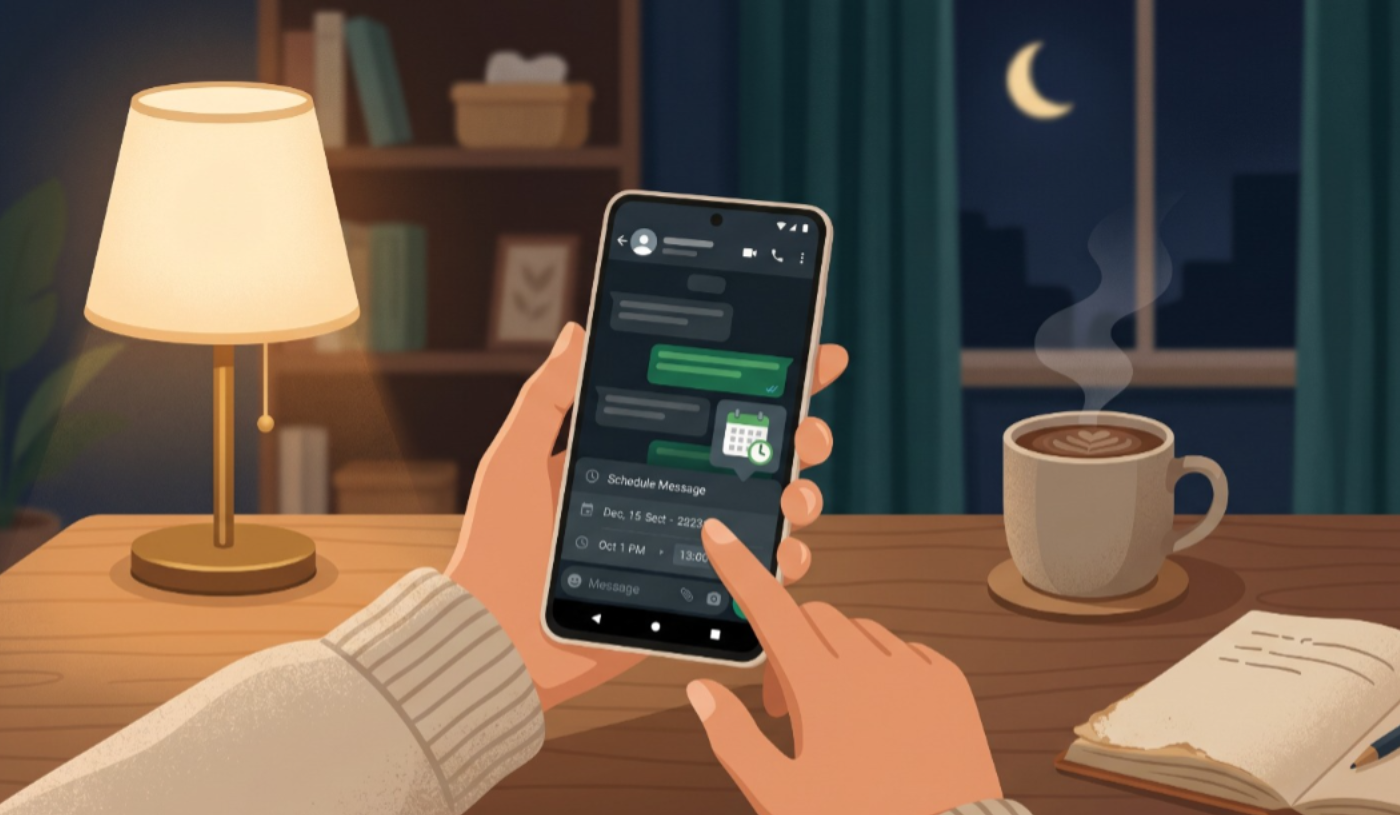
That's when I started looking into how to schedule WhatsApp messages on Android. Turns out, it's totally possible — and way easier than I thought. No root access, no sketchy apps, just a couple of simple methods that genuinely work.
Whether it's a birthday wish, a work reminder, or a "good morning" text you want to send at the perfect time — I've got you covered. Let's get into it!
Why Would You Want to Schedule WhatsApp Messages?
Honestly, the use cases are endless once you start thinking about it. I use scheduled messages for birthday wishes, following up with people after meetings, and even reminding myself of things by messaging my own number. Yes, I do that. No shame.
It's also super handy if you're in a different time zone from someone you message regularly, or if you want to send a work update during business hours instead of at 1 AM when you actually finished the task.
WhatsApp doesn't have a native scheduling feature yet — which is honestly baffling — but third-party apps fill that gap really well.
Method 1: Schedule WhatsApp Messages Using SKEDit
This is my go-to method and honestly the most reliable one I've found. SKEDit is a free app on the Play Store that lets you schedule messages across multiple platforms — WhatsApp, SMS, Telegram, and more.
How to Set It Up:
- Download SKEDit from Google Play Store — it's free.
- Open the app and grant the required permissions (accessibility access is needed for it to work).
- Tap "Schedule a Message" and select WhatsApp.
- Choose your contact, type your message, and set the date and time.
- Hit Schedule — done!
The app will automatically open WhatsApp at the scheduled time and send the message. Your phone screen will briefly light up when it sends — totally normal. I leave my phone on the desk overnight and wake up to confirmed sent messages. Love it.
Important: Keep your phone unlocked or set SKEDit as an exception in your lock screen settings, otherwise it can't send automatically.
Method 2: Business Message Scheduler App
Another solid free option is the Business Message Scheduler app. It works similarly to SKEDit but has a slightly cleaner interface if you're scheduling bulk messages or repeat sends.
Great for situations like weekly reminders to a group, or recurring birthday messages to family. It supports WhatsApp, SMS, and email scheduling all in one place, which is a nice bonus.
Setup is straightforward — download, grant accessibility permissions, create your schedule, and you're good to go. Very similar flow to SKEDit.
Method 3: WhatsApp Business Away Messages
If you use WhatsApp Business, there's actually a semi-native option built in — Away Messages. It's not exactly "scheduling" a specific message, but it auto-replies during set hours, which is useful for professional use.
Go to Settings → Business Tools → Away Message and set your schedule. Anyone who messages you during those hours gets an automatic reply. Perfect for freelancers or small business owners who need to manage after-hours messages.
Quick Comparison: Which Method is Best?
| Method | Free | Ease of Use | Best For |
|---|---|---|---|
| SKEDit | ✅ Yes | ⭐⭐⭐⭐⭐ | One-time scheduled messages |
| Business Scheduler | ✅ Yes | ⭐⭐⭐⭐ | Bulk & recurring messages |
| WA Business Away | ✅ Yes | ⭐⭐⭐⭐ | Auto-reply for businesses |
Pro Tips for Scheduling WhatsApp Messages
- Always keep your phone charged overnight if you have a message scheduled — a dead phone means a missed send.
- Disable battery optimization for SKEDit so Android doesn't kill it in the background.
- Test your first scheduled message to yourself before relying on it for something important.
- Use Do Not Disturb mode while still allowing SKEDit to run — best of both worlds for overnight scheduling.
- For group messages, double-check the recipient before scheduling — harder to unsend in groups!
Frequently Asked Questions
Is scheduling WhatsApp messages safe and allowed?
Using third-party schedulers like SKEDit is generally safe for personal use. These apps work by simulating a tap on your screen rather than accessing WhatsApp's backend — so they don't violate WhatsApp's terms the same way bots do. That said, avoid using them for mass marketing or spam messages.
Does WhatsApp have a built-in message scheduler?
Not yet for the regular WhatsApp app. WhatsApp Business has a limited away message feature, but a full scheduling tool isn't available natively. Third-party apps like SKEDit are currently the best workaround for Android users.
Does the app work if my phone screen is locked?
This depends on your phone settings. Most schedulers need accessibility permissions and may require you to disable lock screen restrictions for them. SKEDit has a built-in guide inside the app to help you configure this correctly.
Olivia's Final Thoughts
Learning how to schedule WhatsApp messages on Android genuinely changed how I manage my communication — especially for birthdays and work stuff. SKEDit is still my top pick for simplicity and reliability.
Give it a try tonight — schedule a good morning message to someone you care about and see how delighted they'll be. Small things like that really do matter. 😊
Have you tried any of these methods before? Or do you know a better tool I should try? Drop it in the comments — I read every single one!
'Tech' 카테고리의 다른 글
| How to Create a QR Code for Free in Under 2 Minutes (0) | 2026.05.30 |
|---|---|
| How to Set Up Google Alerts for Free (Step-by-Step) (0) | 2026.05.29 |
| How to Convert YouTube to MP3 Legally in 2026 (0) | 2026.05.29 |
| How to Speed Up Your Android Phone in 5 Minutes (0) | 2026.05.29 |
| How to Remove Background from Image Online Free (0) | 2026.05.28 |