How to Merge PDF Files Without Adobe — Free Tools That Actually Work
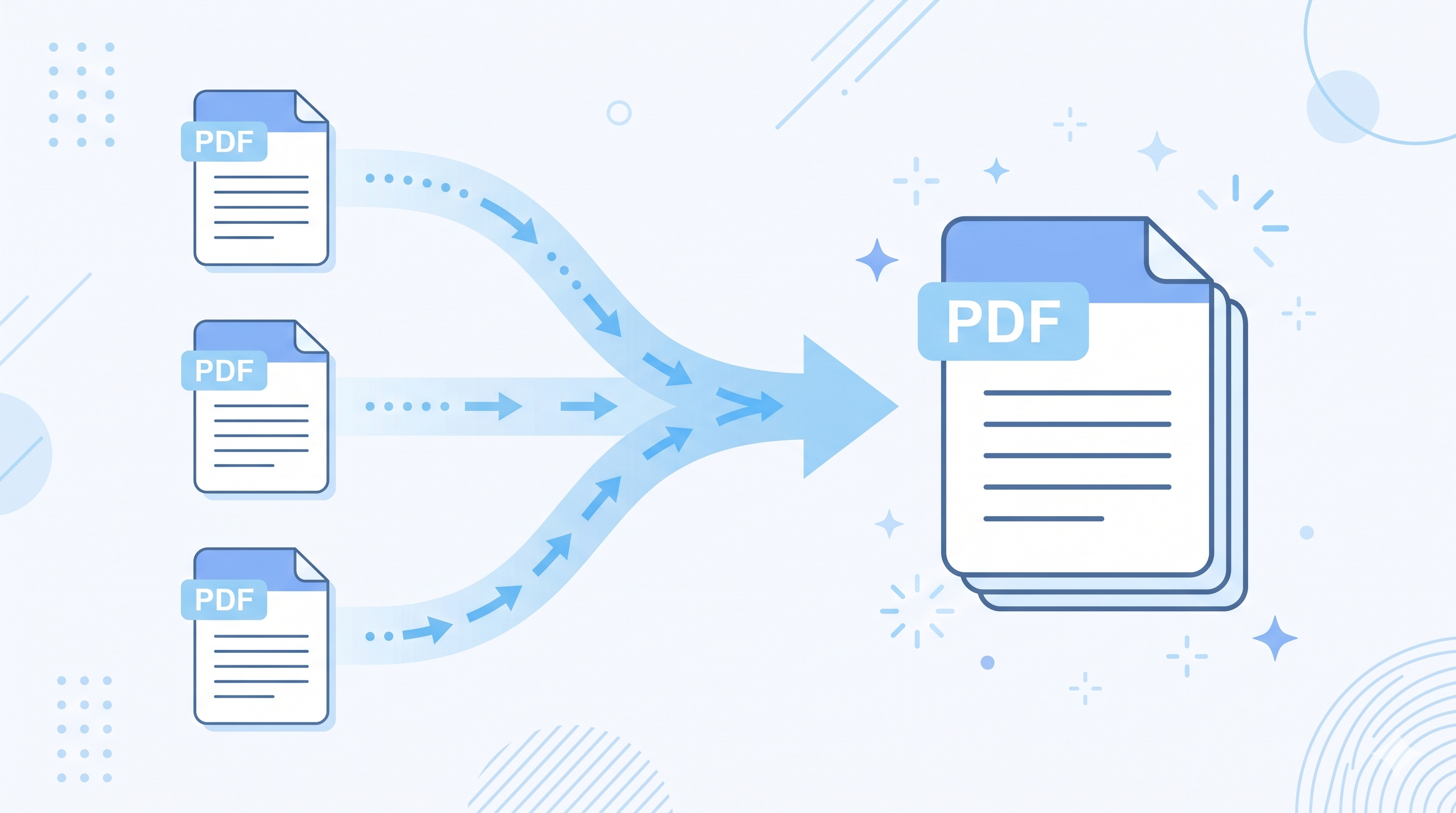
Okay, picture this. You have three separate PDF files — a cover letter, a resume, and a portfolio — and your dream job application requires everything in one single PDF. Deadline is in an hour. You don't have Adobe Acrobat. Classic panic moment, right?
This happened to me during my final semester and I genuinely almost paid for an Adobe subscription just to merge three files. Then I discovered there are completely free ways to do it online in under two minutes — no downloads, no accounts, no credit cards.
Here's everything you need to know about how to merge PDF files without Adobe — quickly, safely, and for free.
Why You Don't Need Adobe to Merge PDFs
Adobe Acrobat Pro is great — but it costs around $19.99 per month, which is honestly absurd for something as simple as combining a couple of files. Most people only need to merge PDFs occasionally, not daily.
The good news is that PDF merging is a technically simple operation, which is why so many free tools do it perfectly well. You're not losing any quality or functionality by skipping Adobe — you're just skipping the bill.
I've used free PDF mergers for everything from job applications to school projects to compiling receipts for reimbursements, and the results are always clean and professional. Let me show you the best options.
Best Free Tools to Merge PDF Files Online
1. Smallpdf — Cleanest Interface
Smallpdf is probably the most well-known free PDF tool online, and for good reason. The merge feature is dead simple — drag your files in, arrange the order, click merge, download. Done.
The free plan allows two PDF tasks per hour, which is more than enough for occasional use. No account required for basic merging. The interface is clean, fast, and works perfectly on mobile too.
Best for: quick one-off merges with a clean experience.
2. ILovePDF — Best for Frequent Use
ILovePDF is my personal favorite for regular PDF work. It's completely free with no hourly limits on basic tasks, and the merge tool is lightning fast. You can upload multiple files, drag to reorder them, and download the merged result in seconds.
It also has a ton of other free PDF tools in one place — compress, split, convert, rotate — so it's worth bookmarking even if you only need it occasionally.
Best for: anyone who works with PDFs regularly and wants a reliable free all-in-one tool.
3. PDF24 — Most Features for Free
PDF24 is seriously underrated. It offers the most features of any free PDF tool I've found — including a desktop app version if you prefer working offline. No file size limits, no watermarks, no account needed.
The merge tool works smoothly and handles large files without complaining. If you need a free PDF solution that goes beyond just merging, PDF24 is the one to bookmark.
Best for: power users who want maximum features without paying anything.
4. Google Drive — Already on Your Phone
Not many people know this, but you can actually merge PDFs using Google Drive and Google Docs — completely free and without any third-party tools. It's a bit more manual, but it works in a pinch when you don't want to use an external website.
The process involves opening each PDF in Google Docs and copying the content into one document, then exporting as PDF. It works best for text-heavy PDFs — not ideal for image-heavy or formatted documents.
Best for: simple text-based PDFs when you want to stay within Google's ecosystem.
Step-by-Step: How to Merge PDFs Free Using ILovePDF
Here's the exact process I use every time — takes about 60 seconds from start to finish:
- Go to ilovepdf.com in your browser.
- Click "Merge PDF" from the tools menu.
- Click "Select PDF files" and upload all the PDFs you want to combine — or drag and drop them.
- Drag the files to arrange the order you want them to appear in the final document.
- Click "Merge PDF" — processing takes a few seconds.
- Click "Download Merged PDF" to save your combined file.
That's genuinely all there is to it. I merged a 12-page document last week using this exact process and the whole thing took less than a minute. No watermarks, no quality loss, perfectly clean output.

How to Merge PDFs Offline Without Any Extra Software
If you're on a Mac, you already have everything you need — the built-in Preview app can merge PDFs natively. Just open the first PDF in Preview, open the thumbnail sidebar, and drag the second PDF's pages into the sidebar. Done.
On Windows, it's a little trickier without third-party software. Your best offline option is downloading PDF24's desktop app — it's free, lightweight, and handles merging perfectly without needing an internet connection.
On Android or iPhone, apps like Adobe Acrobat Free (yes, the free mobile version) or PDF Merge from the Play Store handle mobile merging easily without a subscription.
Quick Comparison: Best Free PDF Mergers
| Tool | Free Limit | No Account | Best For |
|---|---|---|---|
| Smallpdf | 2 tasks/hour | ✅ Yes | Quick occasional merges |
| ILovePDF | Unlimited basic | ✅ Yes | Regular PDF work |
| PDF24 | Unlimited | ✅ Yes | Power users, offline too |
| Google Drive | Unlimited | ❌ Google account | Simple text PDFs |
| Mac Preview | Unlimited | ✅ Built-in | Mac users only |
Pro Tips for Merging PDFs Like a Pro
- Compress before merging if your files are large — use ILovePDF's compress tool first, then merge. Final file size will be much more manageable.
- Always double-check page order before downloading — it's easy to accidentally merge files in the wrong sequence.
- If you're uploading sensitive documents, use PDF24's offline desktop app instead of online tools — your files never leave your computer.
- Rename your final merged file clearly before sending — "merged_document.pdf" is much better than "download(3).pdf" for professional submissions.
- Bookmark ilovepdf.com right now — you'll need it again sooner than you think.
Frequently Asked Questions
Is it safe to upload personal documents to free PDF mergers?
Reputable tools like ILovePDF, Smallpdf, and PDF24 automatically delete uploaded files from their servers within a few hours. That said, for highly sensitive documents like passports, bank statements, or legal contracts — use PDF24's offline desktop app instead, where files never leave your device at all.
Will merging PDFs reduce the quality of my documents?
No — merging PDFs doesn't compress or alter the content. The output quality is identical to the original files. Quality only changes if you specifically use a compression tool, which is a separate step from merging.
Can I merge PDFs on my phone for free?
Absolutely — all the online tools mentioned (ILovePDF, Smallpdf, PDF24) work perfectly in mobile browsers. Just open the website on your phone, upload from your files app, and download the merged result. No app download required.
Olivia's Final Thoughts
Honestly, once I found ILovePDF I never looked back. It's fast, free, reliable, and I've used it dozens of times without a single issue. There's genuinely no reason to pay for Adobe Acrobat just to merge a few files.
If privacy is a concern, grab PDF24's desktop app and keep everything offline. If you just need something quick and easy right now, ILovePDF or Smallpdf will have your merged PDF ready in under a minute.
Got a PDF tool you swear by that I didn't mention? Drop it in the comments — I'm always looking for new favorites. And if this saved you from an unnecessary Adobe subscription today, you're very welcome! 😄
'Tech' 카테고리의 다른 글
| How to Block Ads on Android Without an App Free Methods (0) | 2026.06.02 |
|---|---|
| How to Recover Deleted Photos on Android (0) | 2026.06.02 |
| How to Create a QR Code for Free in Under 2 Minutes (0) | 2026.05.30 |
| How to Set Up Google Alerts for Free (Step-by-Step) (0) | 2026.05.29 |
| How to Convert YouTube to MP3 Legally in 2026 (0) | 2026.05.29 |