How to Recover Deleted Photos on Android — Don't Panic, Try This First
My heart literally sank the day I accidentally cleared my entire camera roll while trying to free up storage. Three months of photos — trips, birthdays, random memories — gone in one tap. I just sat there staring at my phone screen in complete disbelief.

If you're reading this right now in full panic mode, take a breath. Depending on how recently you deleted those photos and whether you had backup enabled, there's a very good chance you can recover deleted photos on Android — completely free.
Here's exactly what I tried, what worked, and what to do first before you accidentally make the situation worse.
Do This First — Before Anything Else
This is the most important step and most people skip it in a panic — stop using your phone immediately. Seriously. Every photo you take, app you open, or file you download overwrites the storage space where your deleted photos are temporarily still sitting.
Deleted files on Android aren't instantly wiped — they stay in storage until new data is written over them. The less you use your phone right now, the better your chances of recovery.
Now let's go through each method from easiest to most advanced. Start with Method 1 and work your way down until you find your photos.
Method 1: Check Google Photos Trash Folder
This is the first place to check and honestly where most people find their deleted photos. Google Photos keeps deleted images in a Trash folder for 60 days before permanently deleting them.
How to Restore from Google Photos Trash:
- Open the Google Photos app on your Android.
- Tap the Library tab at the bottom right.
- Tap Trash.
- Find the photos you want to recover — tap and hold to select them.
- Tap Restore — they'll go straight back to your library.
This was how I got my photos back. I literally cried a little when I saw them all sitting in the Trash folder completely intact. If you have Google Photos installed and it was syncing — this method will almost certainly work for you.
Method 2: Check Your Gallery App Trash Folder
Most Android gallery apps — Samsung Gallery, Xiaomi Gallery, OnePlus Gallery — have their own built-in Recycle Bin that holds deleted photos for 15 to 30 days before permanently removing them.
How to Find It:
- Open your phone's default Gallery app.
- Tap the three-dot menu or hamburger icon.
- Look for Trash, Recycle Bin, or Recently Deleted.
- Select the photos you want back and tap Restore.
The exact location varies by phone brand but it's usually tucked inside the menu or settings of your gallery app. Worth checking before trying anything more complicated.
Method 3: Restore from Google Photos Backup
If you had Google Photos backup enabled before deleting the photos, and the 60-day trash window has passed — you may still be able to find older photos in your backup history.
Go to Google Photos → Search and search for the time period or location where the photos were taken. Google's AI search is surprisingly good at finding photos by date, place, or even what's in the image — like "beach 2024" or "birthday cake."
If you synced via Google One backup, check drive.google.com too — some devices back up photos there as well.
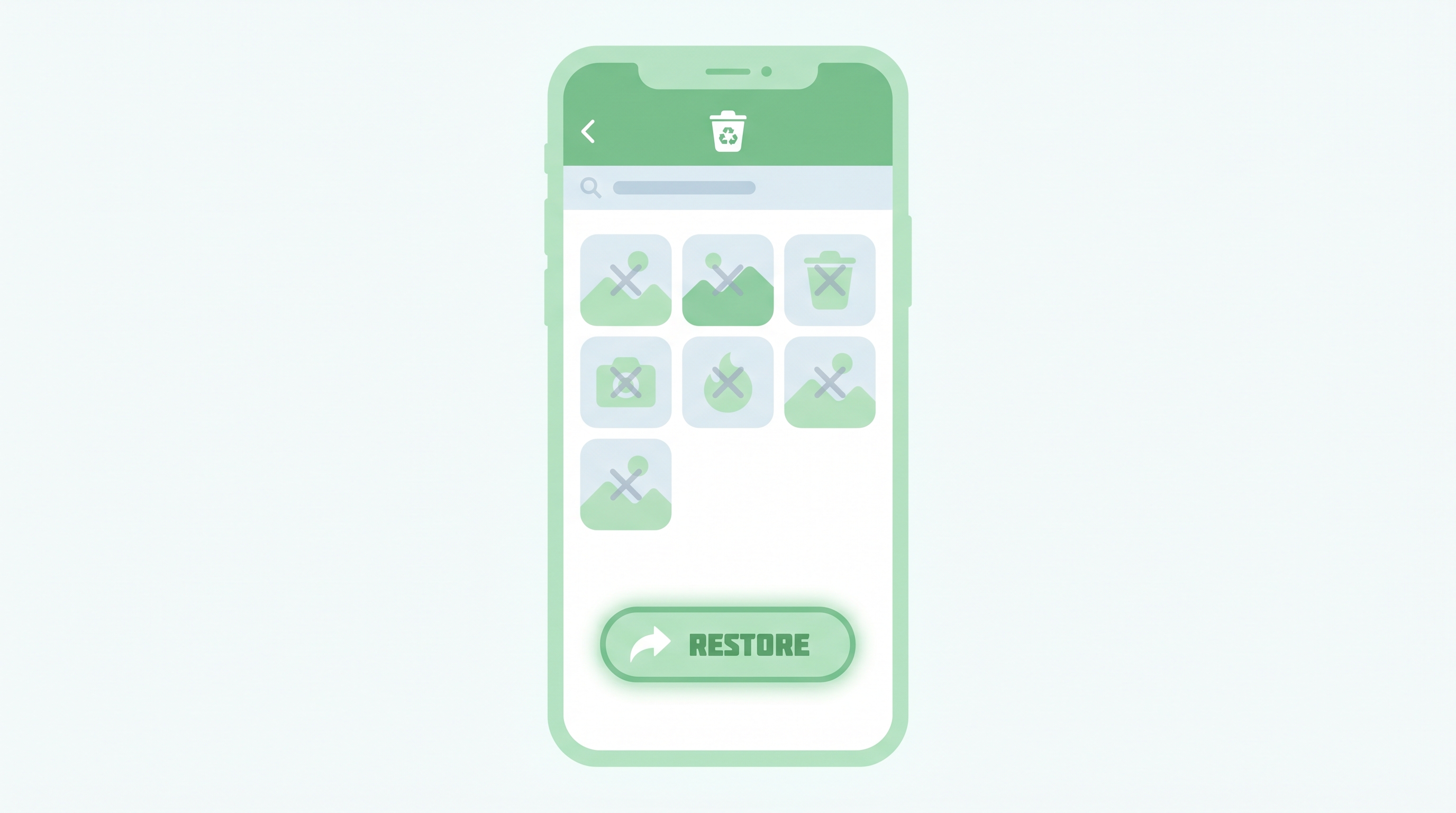
Method 4: Recover Photos from an SD Card
If your photos were stored on an SD card rather than internal storage, your recovery chances are actually better. SD card data recovery using a PC is much more reliable than internal storage recovery.
How to Recover SD Card Photos on PC:
- Remove the SD card from your phone.
- Insert it into your PC using a card reader or adapter.
- Download a free recovery tool like Recuva (Windows, completely free).
- Run Recuva, select your SD card as the target drive.
- Scan for recoverable files and restore the photos you need.
Recuva is genuinely excellent for this — I've used it to recover files from an SD card before and the success rate was impressive. Best of all, it's completely free.
Method 5: Use a Free Android Recovery App
If none of the above methods worked, a dedicated recovery app is your next option. These apps scan your phone's internal storage for recoverable data — but be aware that most require root access for deep internal storage scanning.
DiskDigger Photo Recovery is the most popular free option on the Play Store. The free version scans for cached or temporary photo data — which sometimes recovers recently deleted images without needing root access.
Results with this method vary quite a bit depending on your device, how long ago the photos were deleted, and how much you've used your phone since. It's worth trying but manage your expectations.
Quick Comparison: Which Method to Try First?
| Method | Success Rate | Difficulty | Best For |
|---|---|---|---|
| Google Photos Trash | ⭐⭐⭐⭐⭐ | Very Easy | Within 60 days of deletion |
| Gallery Trash | ⭐⭐⭐⭐ | Very Easy | Within 15–30 days of deletion |
| Google Backup | ⭐⭐⭐⭐ | Easy | Backup was enabled before deletion |
| SD Card + Recuva | ⭐⭐⭐⭐ | Moderate | Photos stored on SD card |
| DiskDigger App | ⭐⭐ | Moderate | Last resort, no backup available |
Pro Tips to Never Lose Photos Again
- Turn on Google Photos backup right now if it isn't already — go to Google Photos → Profile → Photo settings → Backup. Free storage up to 15GB with your Google account.
- Before deleting photos to free up space, always wait for backup to complete first — check the sync status in Google Photos before clearing anything.
- Consider keeping a secondary backup on Google Drive or an external SD card for photos that really matter to you.
- Act fast — the sooner you try to recover, the better. Every hour of phone use reduces recovery chances for unbackedup photos.
- Check Google Photos trash before checking any third-party app — it's free, instant, and has the highest success rate by far.

Frequently Asked Questions
Can I recover permanently deleted photos on Android without backup?
It's difficult but not always impossible. If the storage space hasn't been overwritten yet, tools like DiskDigger may recover some photos. However, success rates are low without root access, and there's no guarantee. This is why enabling automatic backup before anything goes wrong is so important.
How long does Google Photos keep deleted photos?
Google Photos keeps deleted photos in the Trash folder for 60 days before permanently deleting them. After 60 days, they cannot be recovered through Google Photos. This gives you a generous window to catch accidental deletions — as long as you have Google Photos installed and syncing.
Does factory reset permanently delete photos from Android?
A factory reset wipes all data from your device and makes recovery extremely difficult without specialized tools. If you backed up to Google Photos before the reset, those photos are safe in the cloud and can be restored by signing back into your Google account on any device.
Olivia's Final Thoughts
Losing photos is genuinely one of the worst feelings — especially when they're memories you can't recreate. I've been there and I know the panic is real. But in most cases, especially if you use Google Photos, those pictures are recoverable and waiting in the Trash folder.
Start with Method 1, work your way down the list, and don't give up until you've tried them all. And after this scare — please turn on automatic backup. Future you will be so grateful.
Did any of these methods work for you? Let me know in the comments which one saved your photos — I'd love to hear your recovery story! And share this with someone who needs it right now. You might just make their day. 😊
'Tech' 카테고리의 다른 글
| 5 Best Free PDF Editor Apps for Android in 2026 (0) | 2026.06.02 |
|---|---|
| How to Block Ads on Android Without an App Free Methods (0) | 2026.06.02 |
| How to Merge PDF Files Without Adobe Free & Easy (0) | 2026.05.30 |
| How to Create a QR Code for Free in Under 2 Minutes (0) | 2026.05.30 |
| How to Set Up Google Alerts for Free (Step-by-Step) (0) | 2026.05.29 |